
Plan your room in 3D — before you move a thing
Home Room Planner is a free, browser-based room designer. Enter your room's real dimensions, drag in furniture at true size, try different layouts, and walk around the result in 3D. No sign-up, no download.
Open the planner See how it works
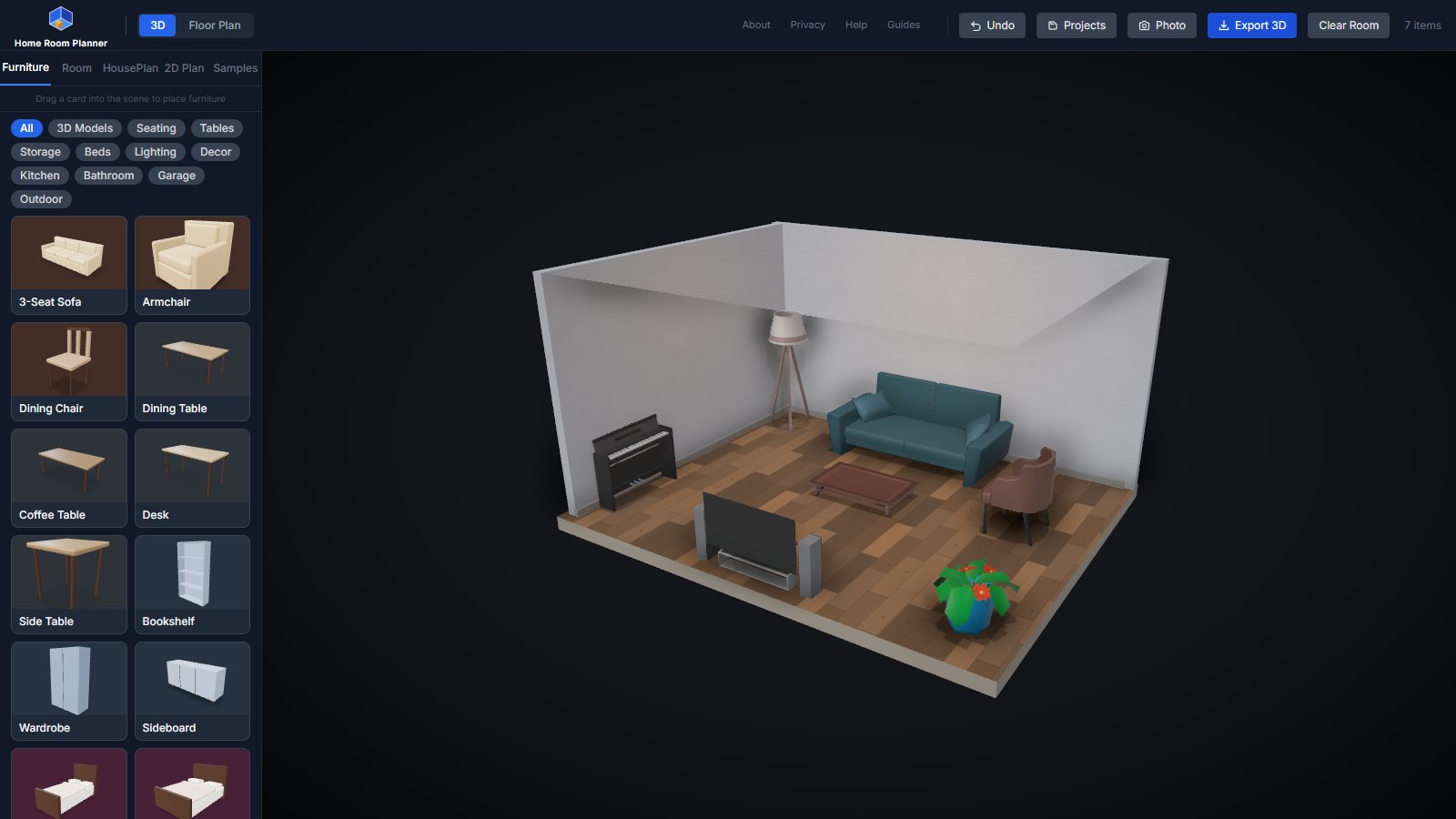
What you can do
Real dimensions
Set width, depth and ceiling height in metres. Every piece of furniture is modelled at its real size, so if it fits on screen it fits in your home.
120+ furniture items
Sofas, beds, dining sets, kitchen appliances, bathroom fixtures, lighting, decor, garage and outdoor items — including detailed 3D models.
Drag, rotate, resize
Drop items into the room, rotate with R, nudge with the arrow keys and resize any piece to match the exact product you're considering.
Walls, colours and floors
Choose wall colours and timber, tile, carpet, concrete or grass flooring — and paint separate floor zones for kitchens and outdoor areas.
Whole floor plans
Draw an apartment or house outline in the 2D Plan tab, add partition walls and doors, and see it extruded in 3D instantly.
Two storeys and stairs
Add an upper floor, connect it with straight, floating, spiral or quarter-turn stairs, and view the floors stacked or side by side.
Save your projects
Keep up to three designs saved in your browser and come back to them any time. Nothing is uploaded.
Photos, export and VR
Save a high-resolution photo of any view to share, or export your room as a .glb 3D file at true scale and walk through it on a Meta Quest 3.
How it works
- Set up the room. Pick a preset or enter your measurements. Not sure how to measure? Follow our room measuring guide.
- Add furniture. Drag items from the Furniture tab into the room, then rotate, nudge and resize them.
- Check it from every angle. Switch between 3D and Floor Plan view to check walkways and sight lines, then save or export your design.
Start from a sample layout
Each sample opens in the planner, ready to resize and rearrange to match your space.
- Living roomSofa, TV, coffee table and rug
- BedroomQueen bed, wardrobe and desk
- KitchenFridge, stove, sink and island
- BathroomBath, shower, toilet and vanity
- Dining roomTable with six chairs
- Open-plan studioKitchen, living and sleeping zones
- One-bedroom apartmentBedroom and living split by a partition
- Double-storey houseKitchen, living, bedrooms, ensuites and stairs
Room planning guides
Practical, measurement-based advice to go with the planner.
-
How to Measure a Room for a Floor Plan (Step by Step)
A practical, step-by-step method for measuring a room accurately — walls, doors, windows, ceiling height and obstacles — so your floor plan and furniture actually fit.
4 min read
-
Furniture Clearances: How Much Space to Leave Around Furniture
Rule-of-thumb clearances for walkways, sofas, coffee tables, beds, dining chairs, desks and kitchen aisles — in millimetres and inches — so a room feels comfortable, not cramped.
3 min read
-
Small Living Room Layout Ideas That Actually Work
Seven proven layouts for small living rooms under about 15 m², with furniture sizes, where to put the TV, and how to keep a clear walkway.
3 min read
-
Bedroom Layout Guide: Bed Sizes, Clearances and Placement
Standard bed sizes (Australian, UK and US), the minimum room size for each, and how to position the bed, wardrobe and desk for a calm, practical bedroom.
3 min read
-
Kitchen Layout Guide: The Work Triangle, Layout Types and Clearances
How the kitchen work triangle works, the six common kitchen layouts and when to use each, plus benchtop heights, aisle widths and island sizes.
3 min read
-
Dining Table Size Guide: What Fits Your Room and How Many It Seats
Work out the right dining table size for your room: seating per person, clearance for chairs, round vs rectangular tables, and quick reference sizes for 2 to 10 people.
2 min read
Frequently asked questions
Is Home Room Planner really free?
Yes. Every feature is free to use with no sign-up, no trial and no watermark on exports. The site is supported by a small number of ads on our guide pages; the planner itself is ad-free.
Do I need to install anything?
No. The planner runs in any modern browser that supports WebGL — Chrome, Edge, Firefox and Safari on desktop, and most recent tablets and phones. A desktop or laptop with a mouse gives the most precise control.
What units does it use?
Metres. Room dimensions, furniture sizes and nudges are all in metres at true 1:1 scale, so what fits in the planner fits in your home.
Can I save my design?
Yes. Use Projects in the top bar to save up to three designs in your browser. They stay on your device — nothing is uploaded — so clearing your browser data will remove them. You can also export a .glb 3D file to keep a permanent copy.
Can I plan more than one room?
Yes. Draw a whole apartment or house outline in the 2D Plan tab, add partition walls and doors in the HousePlan tab, and add a second storey connected by stairs.
Can I take a picture of my design?
Yes. Set up the view you want, then click Photo in the top bar. The planner saves a high-resolution PNG image of the room that you can share or print.
Can I view my design in VR?
Yes. Export your room as a .glb file and open it in a 3D viewer on a Meta Quest 3 or other headset to walk through it at full size. See our VR walkthrough guide for the steps.